ROWF - Carpuride Logo Generator (Windows-App)
ROWF - Carpuride Logo Generator (Windows-App)
Couldn't load pickup availability
With the ROWF Carpuride Logo Creator (a local Windows application), you can create a suitable Boot Logo and Dashboard Logo (BS Series only) for various Carpuride motorcycle display models using your own image or logo.
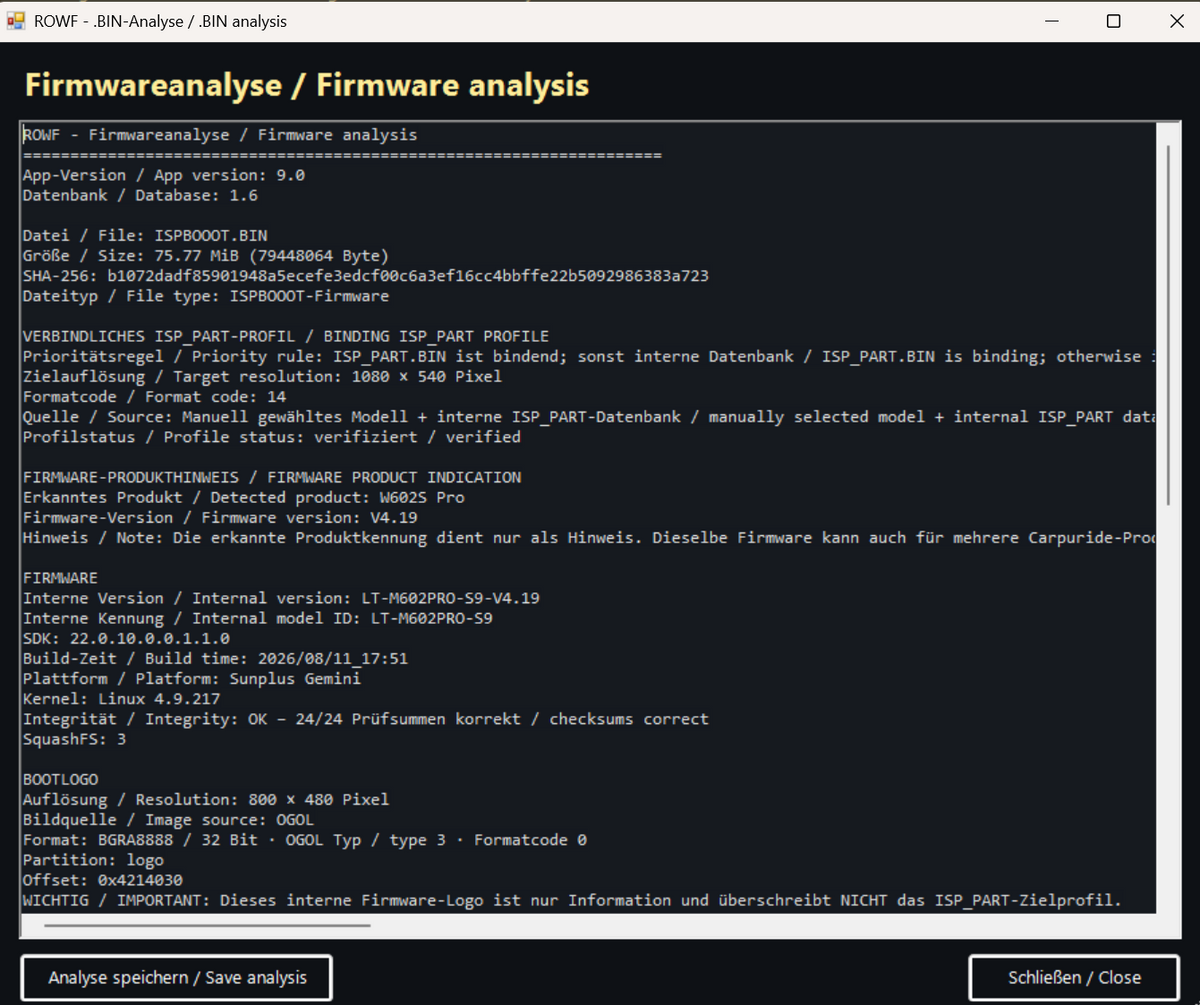
The application checks whether your image is compatible with the selected model and then generates the appropriate file for your Carpuride device. In addition, you can analyze firmware files and display the logos stored inside them.
Various models from the Carpuride 502, 602 and 702 Series are supported. For several devices, the resolution, file structure and pixel format have been verified using original Carpuride firmware files (isp_part.bin and isbooot.bin) and have been implemented in the generator.
For models that have not yet been fully verified, the application will clearly inform you that the functionality is currently experimental.
The Windows application is started by first extracting the ZIP file and then double-clicking:
START_ROWF_Carpuride_Logo_Creator.bat
All data is processed locally on your Windows PC, which means that no internet connection is required.
How to install your new Boot Logo
-
Use the Logo Creator to generate your new
isp_part.binfile. -
Format an SD/TF card using FAT32. Use a card with a maximum capacity of 32 GB.
-
Copy the generated
isp_part.binfile to the root directory of the SD card – do not place it inside a folder. -
Remove the cover of the SD card slot on your Carpuride device. Depending on the model, this is done by removing the two screws on the left-hand side of the display.
-
First switch on the Carpuride device.
-
Then insert the SD card completely into the card slot, making sure that it is inserted in the correct orientation.
-
If the file is detected, the Carpuride device will display a message indicating that the existing
isp_part.binfile will be overwritten. Confirm the process and wait until it has been completed. -
Do not remove the SD card or disconnect the power supply while the file is being written.
-
Restart the Carpuride device after the process has finished. Your individual Boot Logo should now appear during the next startup.
Important: The exact installation procedure may vary depending on the Carpuride model and firmware version.
Never use an isp_part.bin file that was created for a different model or for an unknown firmware version.
⚠️ Liability and Safety Notice
The application and the files generated with it have been carefully tested on various Carpuride devices.
However, due to differences in hardware revisions, firmware versions and software configurations, no guarantee can be given regarding compatibility, and no liability can be accepted for damage, malfunctions, data loss, incorrect conversion or incorrect installation. Use of the application and the generated files is entirely at your own risk.
If you are unsure about your Carpuride model, firmware version or the generated file, do not install the file.
In this case, please contact support@carpuride.com directly to request a Boot Logo file that is suitable for your specific device.
And if you like the ROWF Carpuride Logo Creator, I would really appreciate a small tip.
Thank you very much!
You can also visit our YouTube travel channel:
Ride on with friends – Join the Journey
Have fun!
Jürgen
Share